Problem
When connecting your OneDrive or Office 365 Mailbox (Outlook), you keep receiving the message that your administrator must grant permission:
Quick procedure
The fastest way is to ask your administrator to pre-approve all the permissions that OkiOki may need. The administrator can do this by entering the "tenant-id" of your Office 365 environment in the following URL and then going to that URL
This way, your administrator can approve all the permissions that OkiOki potentially requires. This may be broader than what is specifically needed in your case. If you follow the "Standard procedure" below, you can give permission more precisely.
Standard procedure (recommended)
1. Allow users to request administrator consent for applications.
Ask your administrator to do the following.
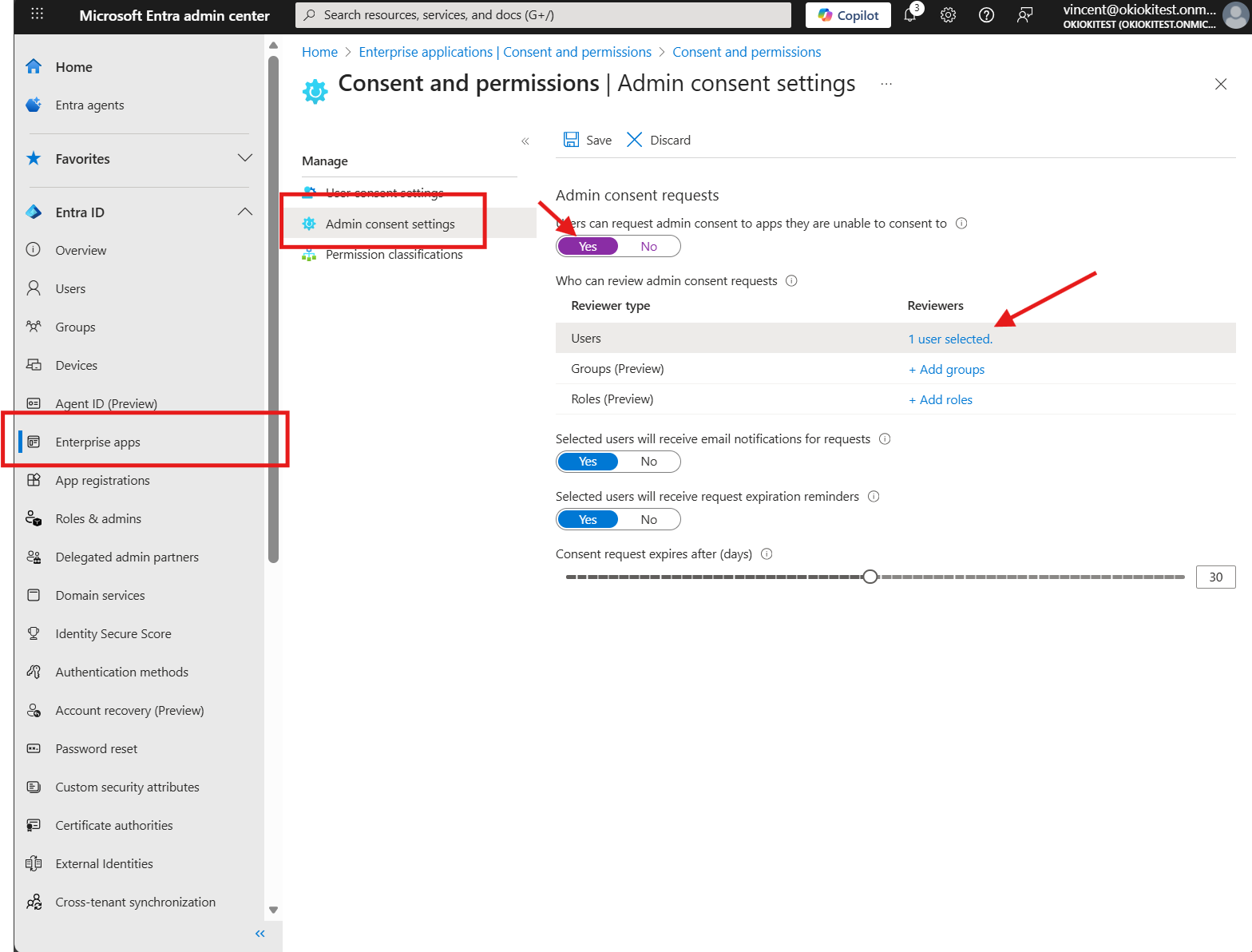
- In the Entra ID admin center, go to "Enterprise Applications"
- In the menu, select "Consent and Permission"
- Allow users to request permission to share their data with an application. You can specify users here who can grant approval. These are usually the administrators.
2. Try connecting again and request the permissions
In OkiOki, try to reconnect your Office 365 / Outlook mailbox. You can now request approval. You can enter a reason yourself. Then click "Request approval"
3. Have your administrator approve the request
Your administrator has now received a request to authorize OkiOki. Your administrator can approve the request as follows (instructions for administrator):
- Go to "Enterprise Applications" in the Entra ID Admin Center.
- In the menu, go to "Admin consent requests"
- Under "My Pending," you will find the request.
- Click on it and then click "Review permissions and consent." You can then approve the request.
4. Now you can connect OkiOki
In OkiOki, go again to "Connections > Email" to connect your Office 365 / Outlook mailbox.
Now it works!
Comments
0 comments
Please sign in to leave a comment.